Difference between revisions of "LFS Editor/Guides/Driver Side Swap"
From LFS Manual
< LFS Editor | Guides
Jump to navigationJump to search (grammar, fix triangle mode link, thumbnail outside the steps) |
(categorisation) |
||
| Line 14: | Line 14: | ||
<p>[[File:Select side.jpg]]</p> | <p>[[File:Select side.jpg]]</p> | ||
}} | }} | ||
| + | |||
| + | [[Category:LFS Editor Guides|{{SUBPAGENAME}}]] | ||
Latest revision as of 16:26, 6 September 2026

- 1 Load the model you will edit.
- 2 Click the Edit button in the bottom right, or press key E.
- 3 Click the tri button at the top, or press the 2 key to enter Triangle Mode.
- 4 From the view models section at the bottom right click l.r.swap.
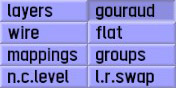
- 5 Select the triangles you want to switch sides and click the swap button. After clicking on l.r.swap, this section will be on the top right:

- 6 The triangles you selected will look like this ➔ .
- 7 After you finish the triangles press the Esc key. LFS Editor/Vehicle Editor/Class & Inputs.
- 8 From the bottom left click locked drive side and confirm.
- 9 Finally, when you press the left/right direction buttons, you will notice that the driver's side and the triangles you selected change.