Difference between revisions of "LFS Editor/Guides/Car Configurations"
From LFS Manual
< LFS Editor | Guides
Jump to navigationJump to search (grammar fix, fixed link to Triangle Mode article) |
|||
| Line 1: | Line 1: | ||
{{steps | {{steps | ||
| [[LFS Editor/Vehicle Editor/Load|Load the model]] you will edit. | | [[LFS Editor/Vehicle Editor/Load|Load the model]] you will edit. | ||
| − | | Click the {{old button|Edit| | + | | Click the {{old button|Edit|paleviolet}} button in the bottom right, or press key {{key press|E}}. |
| Click the {{old button|subob}} button at the top, or press key {{key press|1}} to enter [[LFS Editor/Modeller/Subobject Mode|Subobject Mode]]. | | Click the {{old button|subob}} button at the top, or press key {{key press|1}} to enter [[LFS Editor/Modeller/Subobject Mode|Subobject Mode]]. | ||
| In the upper left area, select what will be closed and what will be opened with triangles and click on any orange space. | | In the upper left area, select what will be closed and what will be opened with triangles and click on any orange space. | ||
| Line 8: | Line 8: | ||
<p>[[File:Layers.jpg]]</p> | <p>[[File:Layers.jpg]]</p> | ||
| After you finish the triangles press the {{key press|Esc}} key. | | After you finish the triangles press the {{key press|Esc}} key. | ||
| − | | Click on {{old button|Configurations| | + | | Click on {{old button|Configurations|palegreen}} on the left and create a new config with {{old button|dup|paleviolet}}. |
| You can turn on/off the layers you added and named in the layers below the newly opened configuration. | | You can turn on/off the layers you added and named in the layers below the newly opened configuration. | ||
<p>[[File:Configs.gif]]</p> | <p>[[File:Configs.gif]]</p> | ||
}} | }} | ||
Revision as of 11:28, 14 February 2026
- 1 Load the model you will edit.
- 2 Click the Edit button in the bottom right, or press key E.
- 3 Click the subob button at the top, or press key 1 to enter Subobject Mode.
- 4 In the upper left area, select what will be closed and what will be opened with triangles and click on any orange space.
- 5 Click the tri button at the top, or press key 2 to enter Triangle Mode.
- 6 After selecting the triangles, click on one of the fields in the upper left and say yes. Now you can turn layers on and off.
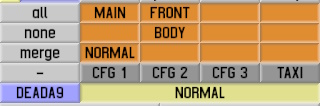
- 7 After you finish the triangles press the Esc key.
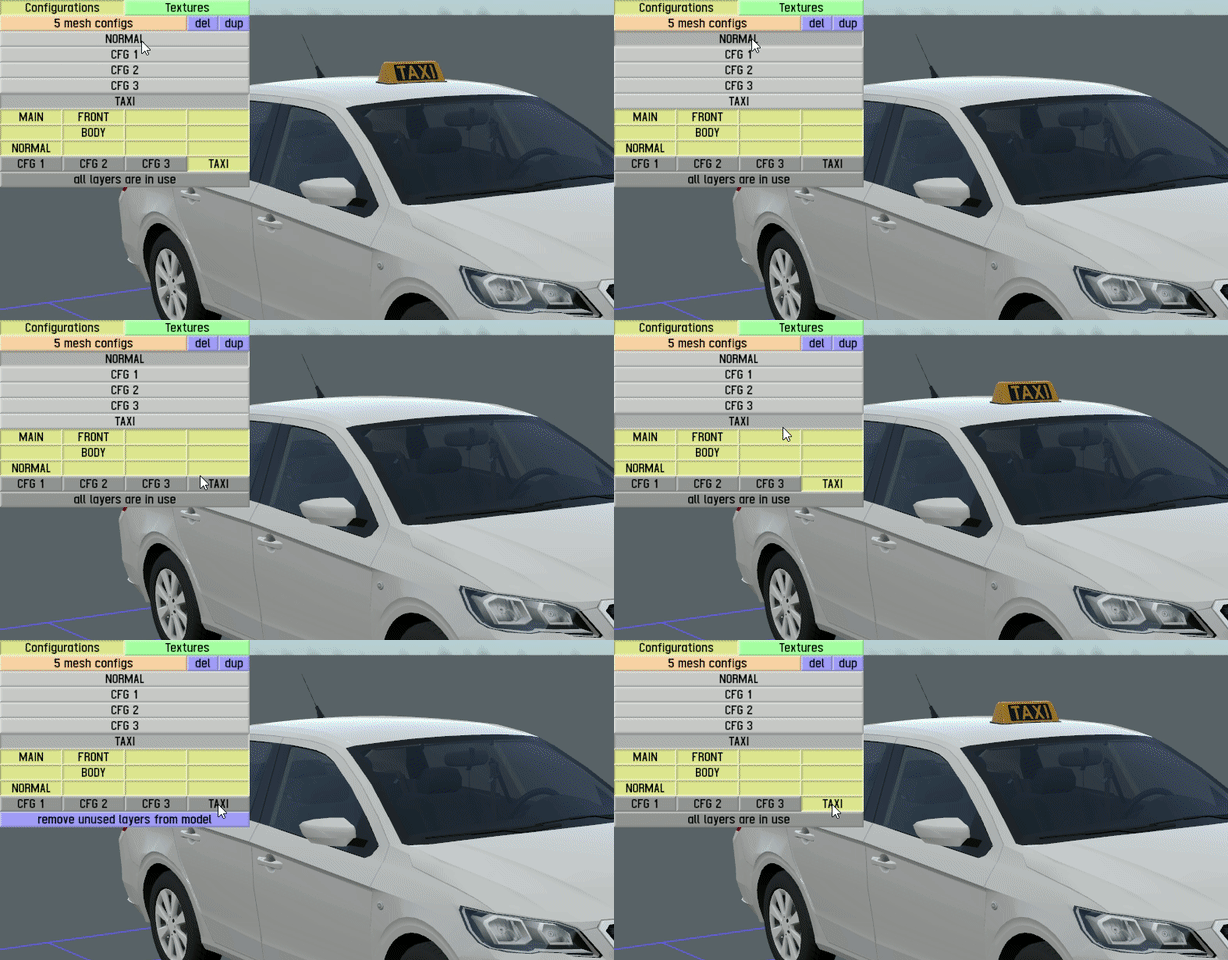
- 8 Click on Configurations on the left and create a new config with dup.
- 9 You can turn on/off the layers you added and named in the layers below the newly opened configuration.