Difference between revisions of "Options"
From LFS Manual
Jump to navigationJump to search (use boxes with images) |
|||
| Line 2: | Line 2: | ||
To open the options menu, press {{key press|Shift|O}}. When you are on track, you can also enter options by pressing {{key press|Esc}} and clicking the {{button|Options}} button. | To open the options menu, press {{key press|Shift|O}}. When you are on track, you can also enter options by pressing {{key press|Esc}} and clicking the {{button|Options}} button. | ||
| + | <ul style="list-style: none; margin: 1rem 0; display: grid; grid-template-columns: repeat(auto-fill,minmax(250px, 1fr)); grid-template-rows: repeat(auto-fill,minmax(300px, 1fr)); gap: 16px;"> | ||
| − | + | {{list item box|[[Options/Audio|Audio]]| | |
| − | |||
| − | {{ | ||
| − | |||
| − | |||
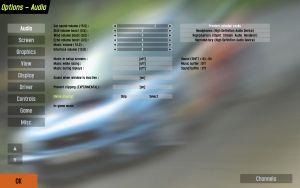
This menu allows you to change the volume of the music and the various sounds. | This menu allows you to change the volume of the music and the various sounds. | ||
| + | |Audio.jpg|frameless|imagelink=Options/Audio}} | ||
| − | {{ | + | {{list item box|[[Options/Screen|Screen]]| |
| − | |||
| − | |||
| − | |||
| − | |||
| − | |||
| − | |||
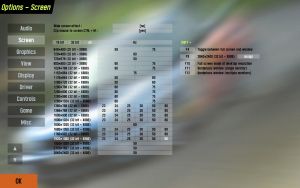
In this menu you can choose the desired resolution, colour depth and refresh rate and assign key commands for different screen configurations. | In this menu you can choose the desired resolution, colour depth and refresh rate and assign key commands for different screen configurations. | ||
| + | |Screen.jpg|frameless|imagelink=Options/Screen}} | ||
| − | {{ | + | {{list item box|[[Options/Graphics|Graphics]]| |
| − | |||
| − | |||
| − | |||
| − | |||
| − | |||
| − | |||
| − | |||
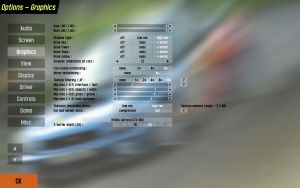
The options in this screen allow you to control the graphics quality. Fine tuning of these options can raise the frame rate or improve the image-quality. Turning off some of the options can vastly improve the gaming experience on some computers that are not quite 'up-to-date'. | The options in this screen allow you to control the graphics quality. Fine tuning of these options can raise the frame rate or improve the image-quality. Turning off some of the options can vastly improve the gaming experience on some computers that are not quite 'up-to-date'. | ||
| + | |Graphicsmax.jpg|frameless|imagelink=Options/Graphics}} | ||
| − | {{ | + | {{list item box|[[Options/View|View]]| |
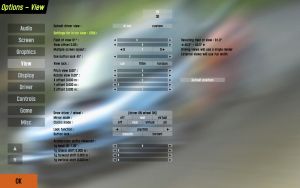
| − | + | The options in the View category will adjust camera sight in the game. Making a personal preferred setting is recommended as what you see in the game is most important. | |
| − | + | |View.jpg|frameless|imagelink=Options/View}} | |
| − | |||
| − | |||
| − | |||
| − | |||
| − | |||
| − | The options in the View category will adjust camera sight in the game. Making a personal preferred setting is recommended as what you see in the game is most important. | ||
| − | |||
| − | |||
| − | |||
| − | |||
| − | |||
| − | |||
| − | |||
| − | |||
| − | |||
| − | |||
| − | |||
| − | |||
| − | |||
| − | = | ||
| − | |||
| − | |||
| − | |||
| − | |||
| − | |||
| − | |||
| − | |||
| − | |||
| − | |||
| − | |||
| − | |||
| − | |||
| − | |||
| − | |||
| − | |||
| − | |||
| − | |||
| − | |||
| − | |||
| − | |||
| − | |||
| − | |||
| − | |||
| − | |||
| − | |||
| − | |||
| − | {{ | + | {{list item box|[[Options/Display|Display]]| |
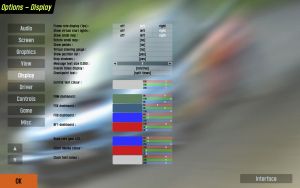
| + | Here we can change the speedo, type of mirror used, and add a map of where we are on the track. | ||
| + | |Display.jpg|frameless|imagelink=Options/Display}} | ||
| − | [[ | + | {{list item box|[[Options/Interface|Interface]]| |
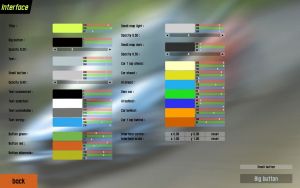
| + | Interface settings allow configuration of the in-game UI and related elements. | ||
| + | |Interface.jpg|frameless|imagelink=Options/Interface}} | ||
| − | {{ | + | {{list item box|[[Options/Driver|Driver]]| |
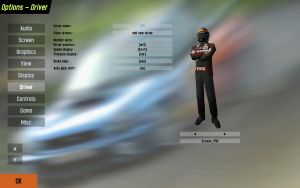
| + | In this menu, details such as screen name and number plate text can be added. You can select your driver (Male or Female), customize helmet and racing suit, and adjust cockpit appearance. Your selected screen name appears next to the player button. | ||
| + | |Driver.jpg|frameless|imagelink=Options/Driver}} | ||
| − | = | + | {{list item box|[[Options/Controls|Controls]]| |
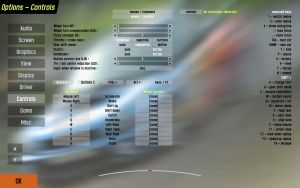
| + | Controls settings allow you to configure input devices and key bindings. | ||
| + | |Controls.jpg|frameless|imagelink=Options/Controls}} | ||
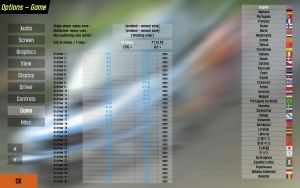
| − | {{ | + | {{list item box|[[Options/Game|Game]]| |
| + | Game settings allow adjustment of general gameplay-related options. | ||
| + | |Game.jpg|frameless|imagelink=Options/Game}} | ||
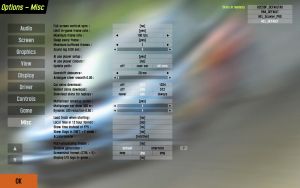
| − | [[ | + | {{list item box|[[Options/Misc|Misc]]| |
| + | Miscellaneous settings for additional configuration options not covered in other categories. | ||
| + | |Misc.jpg|frameless|imagelink=Options/Misc}} | ||
| − | + | </ul> | |
<!-- links to other languages --> | <!-- links to other languages --> | ||
Latest revision as of 22:00, 23 March 2026
Live for Speed offers a variety of in-game options which can be changed at any time.
To open the options menu, press ⇧ Shift + O. When you are on track, you can also enter options by pressing Esc and clicking the Options button.